Guides · Set up
Add the code on your platform
Where the verification tag, file or DNS record goes on WordPress, Shopify, Webflow, Wix, Squarespace, common frameworks and DNS providers.
Before you start
Show the site is yours explains the three ways to prove it: a meta tag on the homepage, a file on the site, or a DNS record. This guide says where each one goes on the platform your site runs on. You need only one.
Copy the site's code from its Settings, on the Setup tab, under Ownership. In the examples,
your-code-from-the-dashboard stands for it, and example.com for the
site's address.
We read the homepage as your server sends it, without running JavaScript. A tag added by a tag manager, such as Google Tag Manager, or by a script in the browser, isn't there when we look. Put it in the page itself, as below.
Site builders
WordPress
WordPress has no field of its own for code in the page's head, so use a plugin made for it. With WPCode, which is free:
- In WordPress's admin, go to Plugins → Add Plugin, search for "Insert Headers and Footers by WPCode", and install and activate it.
- Go to Code Snippets → Header & Footer.
- Paste the tag into the Header box, and click Save Changes.
- If the site uses a caching plugin, clear its cache, so the homepage is sent with the tag.
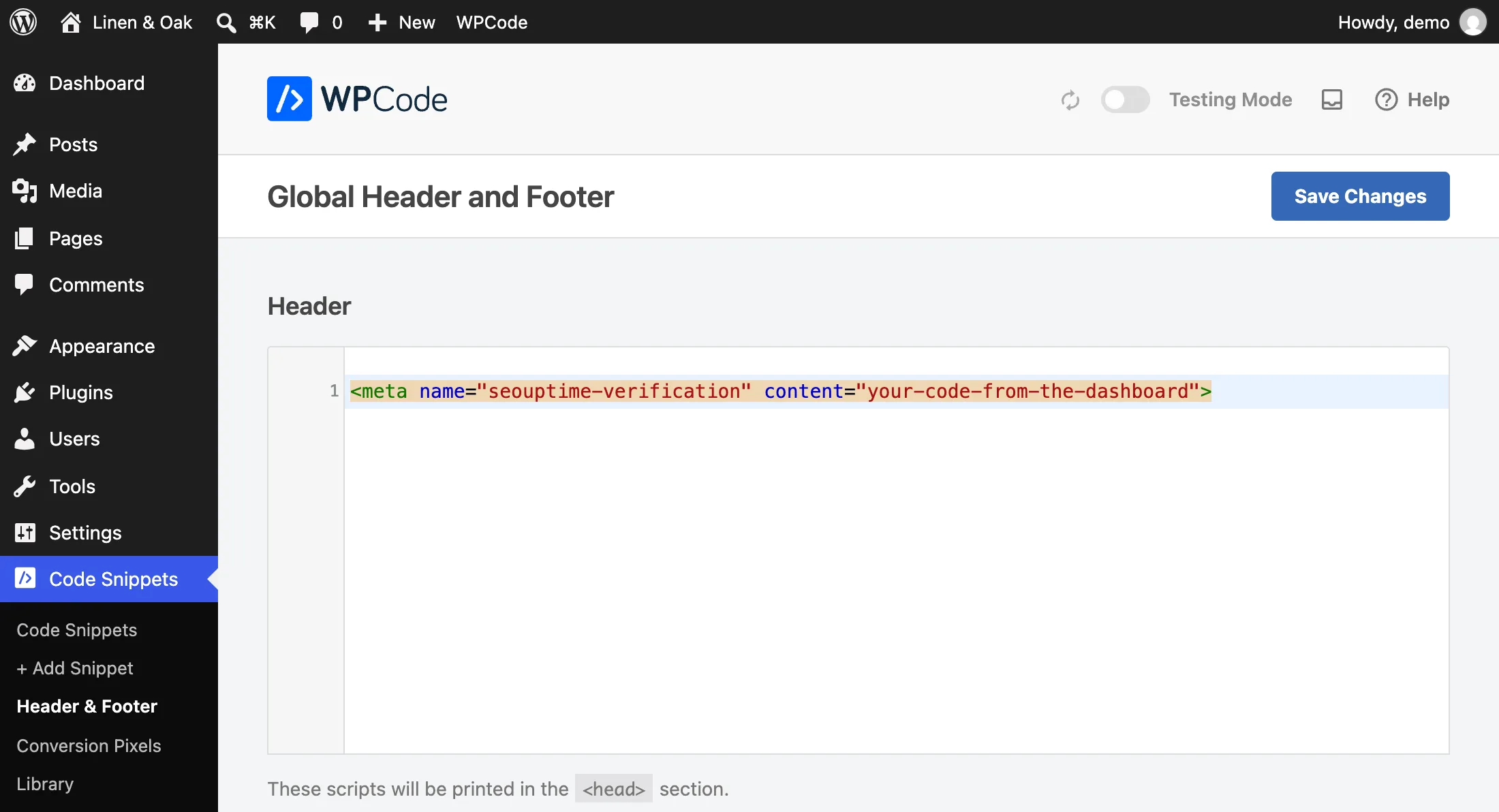
A developer may prefer the theme's code instead. Add this to the functions.php
of a child theme, never the theme itself, which an update would overwrite:
add_action('wp_head', function () {
    echo '<meta name="seouptime-verification" content="your-code-from-the-dashboard">' . "\n";
});
Shopify
- In Shopify's admin, go to Online Store → Themes.
- Beside the theme your store uses, open the ⋯ menu and click Edit code. Shopify suggests duplicating the theme first, as a backup.
- Under Layout, open
theme.liquid. - Paste the tag on a new line just after
<head>, and click Save.
Shopify can't host the file, so use the tag. While the store is behind its password page, we can't see the homepage either: verify once the store is open. If you move to another theme, add the tag to it too.
Webflow
- Open the site's Site settings, then the Custom code tab.
- Paste the tag into Head code, and click Save changes.
- Publish the site. The tag goes live only when you publish.
Webflow allows custom code only on a paid plan.
Wix
- In the site's dashboard, go to Settings → Development & integrations → Custom Code.
- Click Add Custom Code, paste the tag, and give it a name, such as SEO Uptime.
- Under Add Code to Pages, choose All pages. Under Place Code in, choose Head. Click Apply.
Wix runs custom code only on a published site with a connected domain, which needs a paid plan. If you connect a different domain, Wix deletes the code, so add it again. Check the page source as at the end of this guide, and if the tag isn't there, use a DNS record.
Squarespace
- Open the Pages panel, and at its bottom, Custom Code, then Code Injection.
- Paste the tag into Header, and click Save.
Code Injection is on the Core, Plus and Advanced plans, not on Basic.
Frameworks and hand-built sites
For a site in your own code, the tag goes in the <head> of the template the
homepage uses, and the file goes in the folder the web server sends as it is, at
.well-known/seouptime-verification.txt. Either goes live with the next deploy.
Laravel
The tag goes in the layout the homepage uses; in an Inertia app, that is
resources/views/app.blade.php. The file goes at
public/.well-known/seouptime-verification.txt.
Next.js
With the App Router, add other to the metadata that
app/layout.tsx exports. If app/page.tsx sets other of
its own, it replaces the layout's, so add the tag there as well. With the Pages Router, put the
tag inside <Head> in pages/_document.tsx. The file goes at
public/.well-known/seouptime-verification.txt.
export const metadata: Metadata = {
  // what the layout already has, then:
  other: { 'seouptime-verification': 'your-code-from-the-dashboard' },
};
Nuxt
In nuxt.config.ts, as below. The file goes at
public/.well-known/seouptime-verification.txt. If the site is built with
ssr: false, check the page source, and use the file if the tag isn't there.
export default defineNuxtConfig({
  app: {
    head: {
      meta: [{ name: 'seouptime-verification', content: 'your-code-from-the-dashboard' }],
    },
  },
});
Vue or React with Vite
The tag goes in index.html, at the project's root, inside
<head>. The file goes at public/.well-known/seouptime-verification.txt:
Vite copies public into the build as it is.
Node.js with Express
Put the tag in the homepage's template, or answer the file's address with a route of its own:
app.get('/.well-known/seouptime-verification.txt', (req, res) => {
  res.type('text/plain').send('your-code-from-the-dashboard');
});
Plain HTML
Put the tag inside <head> in the homepage's index.html, and
upload it. Or make a folder named .well-known at the site's root and upload the
file into it. Some FTP programs hide folders whose names start with a dot, until you turn on
showing hidden files.
DNS providers
Add the record where the domain's DNS is managed, which isn't always where it was bought: if
its nameservers are Cloudflare's, add it at Cloudflare. It goes on the exact host the
Ownership panel shows. In most providers, a name of @ means
example.com itself, and www means www.example.com.
Type:   TXT
Name:   @, or www, as the panel shows
Value:  seouptime-verification=your-code-from-the-dashboard
Cloudflare
Show the site is yours has the steps.
GoDaddy
- In your Domain Portfolio, open the domain, then its DNS tab.
- Click Add New Record, and choose TXT as the type.
- Name:
@orwww. Value: the record's value. Click Save.
Namecheap
- In your Domain List, click Manage beside the domain, then open Advanced DNS.
- Click Add New Record, and choose TXT Record.
- Host:
@orwww, without the domain name. Value: the record's value. Save it.
This works while the domain uses Namecheap's own DNS. If it uses Namecheap's web hosting, add the record in the hosting's cPanel instead.
Amazon Route 53
- In Hosted zones, open the domain's zone and click Create record.
- Record name: leave it empty for
example.comitself, or typewww. Record type: TXT. - Value: the record's value inside double quotes, as
"seouptime-verification=your-code-from-the-dashboard". Click Create records.
Route 53 keeps all the TXT values of one name in a single record. If the name already has one, often for SPF, edit it and add ours on a new line, in its own quotes.
Check it is live, then verify
-
The tag: open the homepage and view its source: Ctrl+U in Chrome, or ⌥⌘U on a Mac.
Search it for
seouptime-verification. The source is what the server sends, which is what we read. The browser's inspector also shows what scripts added, which we don't see. -
The file: open
https://example.com/.well-known/seouptime-verification.txt. It should show the code and nothing else. Your site's own page, or "not found", means the file isn't where it should be. - The record: it usually shows within minutes, but can take a few hours.
If a cache or CDN sits in front of the site, it may send the old homepage for a while: clear it. Then press Verify now in the Ownership panel.